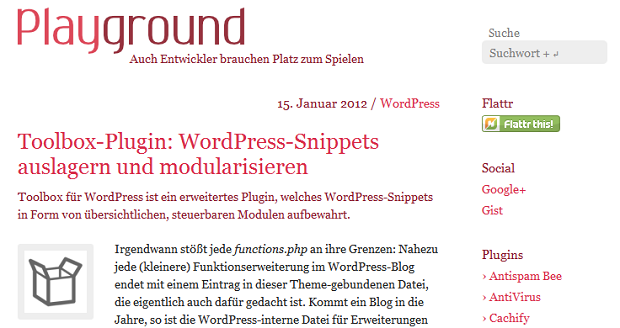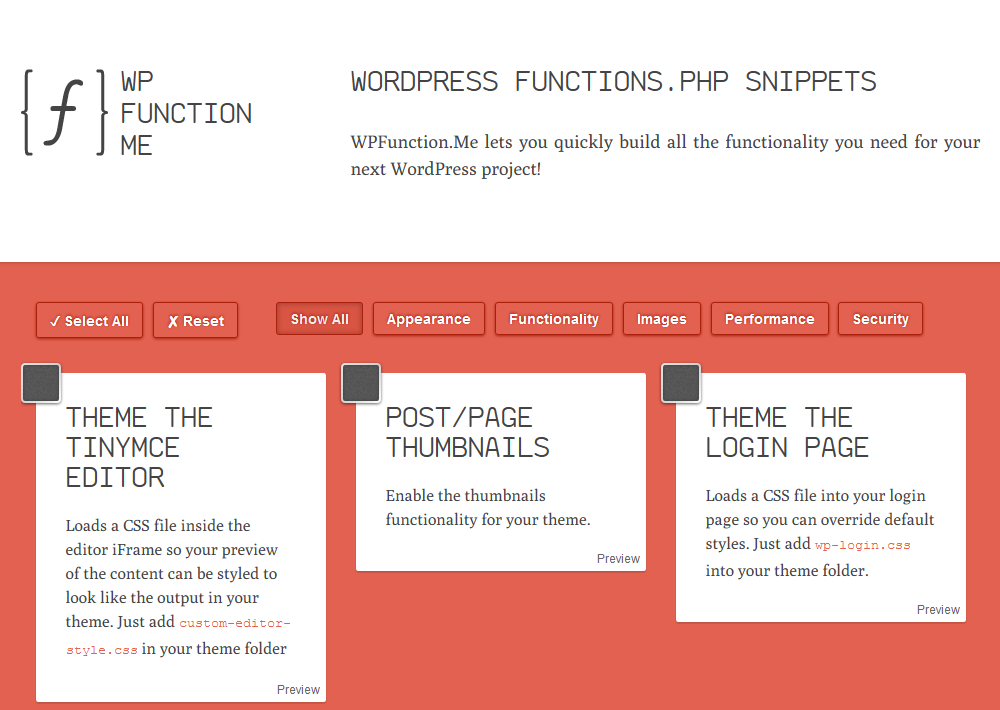

Schlagwort: functions.php
-
WordPress: Default post editor text
// Default post editor text // add_filter( 'default_content', 'diww_default_post_content' ); function diww_default_post_content( $content ) { $content = ' // Any stuff you would put into your HTML '; return $content; } -
Paths For Building WordPress Themes or Plugins
(Quelle: computeraxe.com/paths-building-wordpress-themes-pl…) When tinkering with the code that runs WordPress it’s very important to get the correct path to a file. Of course it is or else the files can’t be found and your new functionality won’t work.
According to the Codex
In Version 2.6, users were given the ability to move their /wp-content/ directory to anywhere they want, and many users already keep all WordPress files (like /wp-admin/ and /wp-includes/) in an unusual place.
In case you’ve moved the files for your WP installation, you probably have a good handle on paths and how to traverse them. For those who don’t, it can be a hair-pulling experience to find the right path. Once the right path is found, work can continue.
WordPress Paths
To help avoid those DUH! moments, here are some functions and constants that WordPress has defined regarding paths. Once you’re familiar with these functions, writing useful and working code should become easier. Optional parameters may be of use in modifying the output for several of the following templates, including $path, $file or $scheme.
- plugin_basename()
- Usage: plugin_basename(__FILE__); Returns: the name of the plugin and file, such as “myPlugin/myPlugin.php”
- get_theme_root()
- Usage: get_theme_root(); Returns: path to themes directory. No trailing slash.
- get_theme_root_uri()
- Usage: get_theme_root_uri(); Returns: URI for themes directory. No trailing slash.
- get_theme_roots()
- Usage: get_theme_roots(); Returns: Themes directory with a leading slash, like “/themes”.
- site_url()
- Usage: site_url(); Returns: Site directory with no trailing slash.
- admin_url()
- Usage: admin_url(); Returns: Admin directory with trailing slash.
- content_url()
- Usage: content_url(); Returns: Content directory with trailing slash.
- plugins_url()
- Usage: plugins_url(); Returns: Plugins directory with trailing slash.
- includes_url()
- Usage: includes_url(); Returns: Includes directory with trailing slash.
- home_url()
- Usage: home_url(); Returns: Home directory with no trailing slash.
- ABSPATH (constant)
- Usage: ABSPATH. Returns: Home directory with no trailing slash.
- TEMPLATEPATH (constant)
- Usage: TEMPLATEPATH. Returns: Path to current theme with no trailing slash.
There are a few more functions for multisite installations and backwards capability specified in the Codex.
PHP Paths
Some PHP functions worth noting –
- __FILE__ returns the filename of the script that is currently being run
- dirname() returns parent directory’s path for a given filename with no trailing slash
- basename() returns the filename component of path without any parent directories
- getcwd() returns current working directory
Use the functions or constants indicated to build your paths instead of hard-coding them. You’ll save yourself a LOT of trouble when it comes time to move your WordPress installation to a new server or directory.
-
Irgendwas in den WordPress-Seitenkopf einbauen
Folgendes in die functions.php des Themes schreiben:
<?php
//Das hier sagt "Bau irgendwas in den Head ein"
add_action('wp_head', 'irgendwas');
//Und hier wird irgendwas definiert
function irgendwas() { ?>
//irgendwas hier einsetzen
<?php }
?>
Irgendwas ist natürlich durch irgendwas zu ersetzen.
-
Understanding Source Code
The best way to understand what a hook does is to look at where it occurs in the source code.
- Action hooks look like this:
do_action( "hook_name" ) - Filter hooks look like this:
apply_filters( "hook_name", "what_to_filter" ).
Remember, this hook may occur in more than one file. Moreover, the hook’s context may change from version to version. (Source/more: Adam R. Brown)
- Action hooks look like this:
-
GOOGLE-Analytics-Code ohne Plugin in WordPress einfügen
Die functions.php des aktiven Themes der WordPress-Installation öffnen, in deren Head der Google-Analaytics-Code erscheinen soll. Wenn die Datei noch keine Befehle enthält sieht sie so aus:
[php]<?
?>[/php]Jede PHP-Datei fängt mit „<?“ an und hört mit „?>“ auf. Davor und danach darf nichts, auch kein Leerzeichen stehen. Dazwischen alles. In unserem Fall bauen wir Folgendes ein:
<?

//Das hier sagt "Bau den Google-Analytics-Code in den Head ein"
add_action('wp_head', 'googleanalytics');
//Und das ist der Google-Analytics-Code
function googleanalytics() { ?>
<script type="text/javascript">
var _gaq = _gaq || [];
_gaq.push(['_setAccount', 'UA-1234567-8']);
_gaq.push(['_trackPageview']);
(function() {
var ga = document.createElement('script'); ga.type = 'text/javascript'; ga.async = true;
ga.src = ('https:' == document.location.protocol ? 'https://ssl' : 'http://www') + '.google-analytics.com/ga.js';
var s = document.getElementsByTagName('script')[0]; s.parentNode.insertBefore(ga, s);
})();
</script>
<?php }

?>
Den Platzhalter UA-1234567-8 durch die gültige Web-Property-ID des entsprechenden Google-Analytics-Projekts ersetzen, functions.php speichern und hochladen, fertig.
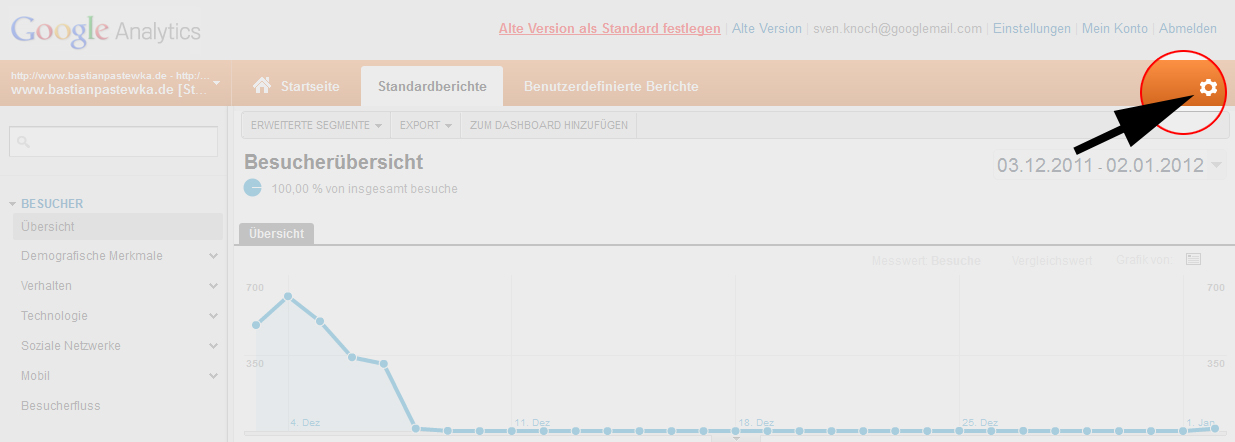
Web-Property-ID unbekannt? In dem Fall Google-Analytics-Konto aufrufen, dort klicken:

In der nun geladenen Seite steht die Web-Property-ID recht weit oben.
-
Dynamisches Konzept für Permalinks
Include-Datei: wp_shortcode-links.php
[php]<?php
// playground.ebiene.de/2388/wordpress-shortcode-link…
add_shortcode(
‚post‘,
create_function(
‚$atts, $data‘,
‚return "<a href=\"" .get_permalink($atts[id]). "\" title=\"" .esc_attr(strip_tags(get_the_title($atts[id]))). "\">" .$data. "</a>";‘
)
);
?>[/php]Das Einfügen von Verlinkungen in den verfassten Beitragstext gestaltet WordPress mehr als komfortabel: Mit Copy & Paste der Internet-Adresse ist das Vorhaben prompt und wirkungsvoll erledigt. Bei Projekten im jungen Stadium des Fortschritts wird erfahrungsgemäß rege und gern experimentiert, optimiert und modifiziert. Im Verlauf der Abstimmung kommt es daher meist zu textlichen Änderungen im Titel und dem Inhalt der Artikel. Aber auch bei Permalinks kann sich die Struktur und die Zusammensetzung jederzeit erneuern – Unordnung ist vorprogrammiert. Um die bereits gesetzten, aber im Laufe der Website-Entwicklung umgeformten Links nicht per Hand korrigieren bzw. migrieren zu müssen, werden Verknüpfungen zwischen den internen Blogseiten mithilfe eines simplen Shortcode gesetzt und mit jeweiliger ID angesprochen. Die Zweckmäßigkeit der Lösung: Die Artikel-ID bleibt für immer konstant, kann als Referenz der gelinkten Seite also sorglos verwendet werden – der Hyperlink wird anhand der ID dynamisch ermittelt und ist immer auf dem aktuellsten Stand. Ohne Weiterleitungen, ohne zusätzliche Plugins.
-
Sidebar rausnehmen
Bei Knacker einfach ist er jetzt wieder drin – so kann man ihn rausnehmen:
[php]// Sidebar rausnehmen
// programming.thematic4you.com/2010/01/how-to-remove…
function remove_sidebar() {
return FALSE;
}
// Connect the filter to thematic_sidebar()
add_filter(‚thematic_sidebar‘, ‚remove_sidebar‘);[/php] -
WordPress-Custom-Login nach Frank Bültge
Manchmal will man den WordPress-Look beim Login durch einen anderen Look (zum Beispiel den eines Kunden) ersetzen.

Diese Methode eine Lösung, Frank Bültge hat sie geschrieben. Folgende Zeilen müssen in die
functions.phpdes Themes:[php]// Custom-Login nach Frank Bueltge bueltge.de/wordpress-27-login-design-anpassen/846/
// modifiziert nach themeshaper.com/forums/topic/bloginfotemplate_dire…
function fb_custom_login() {
echo ‚<link rel="stylesheet" type="text/css" href="‘ . get_bloginfo(’stylesheet_directory‘) . ‚/custom-login/custom-login.css" />‘;
}
add_action(‚login_head‘, ‚fb_custom_login‘);[/php]Der Script-Schnipsel tut nichts anderes, als die Login-Seite eine andere CSS beizugeben. Normalerweise wird die wp-admin>css>login.css angesprochen; Frank Bültges Skript sagt WordPress jetzt, es solle stattdessen im Sylesheet-Ordner des Themes den Ordner „custom-login“ suchen und darin die
custom-login.css– die muss man natürlich anlegen. (mehr …)