Copying layer comp positioning in Photoshop CS – Graphic Design Stack Exchange

I have a layer group which appears in 15 layer comps in the same position, and I need to move it to a new position in all layer comps. (1) Move the layer group to the new position in one of the layer comps. (2) Make sure the layer group is selected. Make sure the updated layer comp is selected. (3) Now select all of the layer comps too. (4) Use the „Update Position“ button in the Layer Comps panel (not the Refresh symbol button). Now the layer group should be repositioned in all layer comps.

Quelle: Copying layer comp positioning in Photoshop CS – Graphic Design Stack Exchange

[GUIDE] Youtube Channel Art Guidelines and Best Practice for Business | Youzign Blog | Youzign Blog

Let’s start off with a brief introduction to Youtube (even if you know something about it, the stats are still impressive). Three former Paypal employees launched the site in 2005. Google bought the company in 2006 almost two years later for $1.65 billion (not a bad salary for 22 months of work).Today Youtube has more than one billion users with hundreds of millions of hours of videos watched every day. The average amount of time people spend on the site is also steadily increasing, with up to 50% increase in time spent on site year on year. Maybe that shouldn’t be surprising given that 300 hours of videos are uploaded onto the site every minute.What all of this information reinforces something that you almost certainly already know; Youtube is the biggest video-sharing site on the Internet. Of course every Internet marketer knows this. In fact there are more than a million small businesses, companies and entrepreneurs advertising through the site.If you plan to get involved in video marketing, or just want to create your own video channel then there’s never a better time than now.

Quelle: [GUIDE] Youtube Channel Art Guidelines and Best Practice for Business | Youzign Blog | Youzign Blog

No More Cowboy Coding: Improving Your WordPress Workflow – WPMU DEV

When most people start doing WordPress development, their workflow involves downloading a file from a theme or plugin via FTP, editing it, uploading it via FTP, refreshing the page, figuring out went wrong and then starting the whole process over again. This strategy, know as “cowboy coding” is not only inefficient, but dangerous.

Quelle: No More Cowboy Coding: Improving Your WordPress Workflow – WPMU DEV

How to hide PHP Warnings and Notices in WordPress

From time to time a user comes to me and says “I see some PHP notices and warnings on my page”. Most of the time these are nothing to worry about (though the plugin/theme developer should know about these so that they may fix them in a future release). PHP warnings and notices are nothing to worry about on a production site most of the time. Some of these can even be generated because the developer has to keep compatibility with older versions of WordPress as well as older PHP versions. The solution:

Quelle: How to hide PHP Warnings and Notices in WordPress

Notepad++ NppFTP plugin fails to connect via SFTP

The solution for me was to use puttygen to export a .ppk version of my private key to OpenSSH as follows: Open PuttyGen Menu: Conversion -> Export OpenSSH key Save your new key (don’t forget to make it clear it is openssh)This was weird seeing as my .ppk was converted from a private key generated by OpenSSH itself.I think it has to do with the fact that my original key starts with—- BEGIN SSH2 ENCRYPTED PRIVATE KEY —-whereas the exported key starts with—–BEGIN RSA PRIVATE KEY—–

Quelle: Notepad++ NppFTP plugin fails to connect via SFTP

7.1 Das Buch

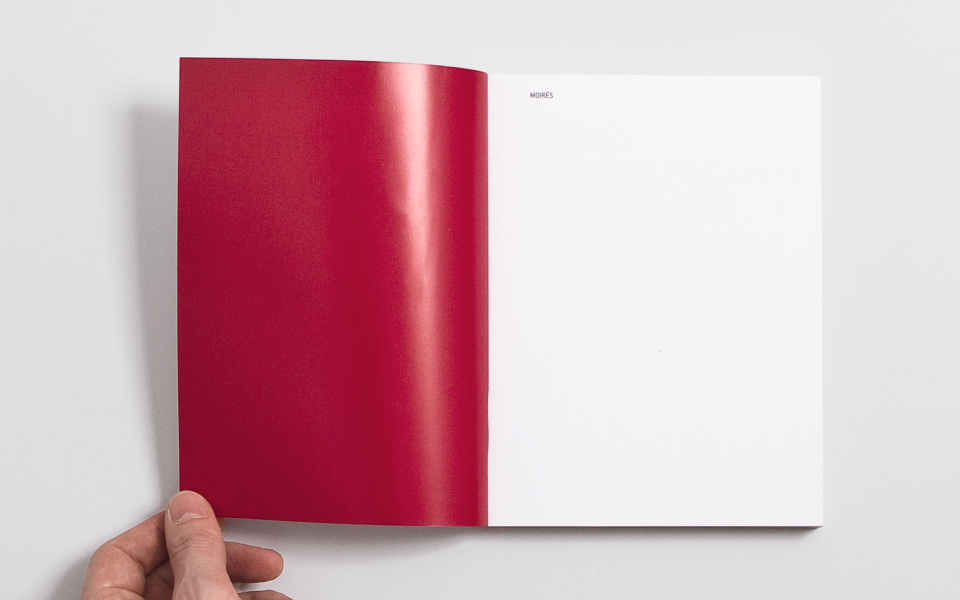
Klassischer Aufbau der ersten BuchseitenSeitenzahl Seitenname Beschreibung1 Schmutztitel Enthält Titel und ggf. Autor des Buches.2 Vakat Leerseite, auch Vakat genannt.3 Haupttitel Enthält den Titel, einen möglichen Untertitel und den Namen des Autors. Oft werden auch die produzierende Druckerei oder der Verlag genannt.4 Impressum Im Impressum wird Auskunft über Auflage, Copyright und Herstellung des Buches gegeben.Die nachfolgenden Seiten sind optional. Sind sie nicht im Buch enthalten, kann ab der Seite Fünf bereits das Inhaltsverzeichnis stehen. Ansonsten verschiebt sich der Beginn auf die nächste freie Seite mit ungerader Seitenzahl.5 Vorwort Wenn der Autor ein Vorwort wünscht, wird dies auf der fünften Seite verfasst.6 Vorwort-Fortsetzung Handelt es sich um ein langes Vorwort, kann es auf Seite Sechs fortgesetzt werden. Sonst bleibt die Seite Vakat.7 Gebrauchsanweisung Sind erläuternde Erklärungen zu einem Buch notwendig, werden diese nicht ins Vorwort sondern in einer Art Hinweistext verfasst.Auf den letzten Seiten steht insbesondere bei Fachbüchern ein Glossar zum Nachschlagen von Wörtern und eine vollständige Literaturliste.

Quelle: 7.1 Das Buch

Schmutztitel – Wikiwand

Als Schmutztitel (lateinisch Antiporta) – seltener Schutztitel, Vortitel oder Vorsatztitel – wird der meist griffige Kurztitel des Werkes bezeichnet, der auf einer gesonderten, dem eigentlichen Titelblatt vorangestellten Seite aufgeführt ist. Diese zusätzliche Seite nennt sich Schmutztitelseite und ist die erste/oberste Seite des Buchblocks. Sie trägt in der Seitenzählung (Paginierung) die nicht ausgedruckte Nummer 1.

Quelle: Schmutztitel – Wikiwand

Frontispiz – Wikiwand

Das Frontispiz (französisch: frontispice = Stirnseite, ursprünglich bezugnehmend auf den Frontspieß von Gebäuden, aus lateinisch: frontispicium von frons: Stirn, spicere: schauen) ist eine dekorative oder informative Abbildung, die sich auf der zweiten, dem Titelblatt (Seite 3) gegenüberliegenden Seite befindet. Er ist in der Regel also auf die Rückseite des Schmutztitels (Seite 1) gedruckt. Dagegen wird ein als Titelseite fungierender ganzseitiger Kupferstich als Kupfertitel bezeichnet.

Quelle: Frontispiz – Wikiwand

Shaker Media GmbH- Autor werden

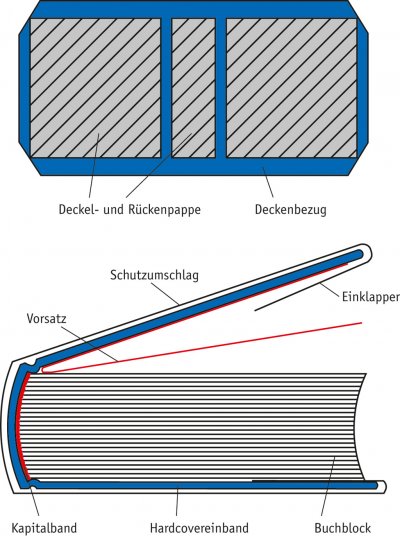
Besonderheiten bei Hardcover-Ausgaben Einschlagrand Bei einem Hardcover-Umschlag wird der Bedruckstoff auf einen Buchdeckelkarton aufgezogen, um die Kanten herum eingeschlagen und auf der Kartoninnenseite mit einem Vorsatzpapier überklebt. Hierfür wird ein zusätzlicher bedruckter Rand von 15 mm (+ 3mm Beschnittrand) benötigt.

Quelle: Shaker Media GmbH- Autor werden

Find and replace text and other data in a Word document – Word

Find and replace text and other data in a Word document Applies To: Word Starter Word Starter 2010 Word 2016 Word 2013 Word 2010 More… Word offers several options for locating specific content in your document. You can search for and replace items such as text, images, captions, bookmarks, or certain types of formatting such as paragraphs or page breaks. You can use the Go To command to go to a particular instance of content in your document, and you can also extend your search by using wildcards, cod

Quelle: Find and replace text and other data in a Word document – Word

Finding and replacing characters using wildcards

Wildcards are like the blank pieces in Scrabble, or like the Jokers you can use in some card games to stand in for any card. You are perhaps already familiar with the * and ? wildcards from file matching: In the File + Open dialog, you can display all files with the extension .doc by typing *.doc, or all files 01062001.doc, 01072001.doc, 01122001.doc… by typing 01??2001.doc.

But the wildcard feature in Word goes way beyond that, and can be very powerful.

Quelle: Finding and replacing characters using wildcards

OnPageWiki – Digitales Marketing Lexikon

Das OnPageWiki ist ein Digitales Marketing Lexikon, welches sieben wichtige Bereiche umfasst. Es hilft Dir dabei, die wichtigen Begriffsdefinitionen aus den Themenbereichen Online Marketing, Suchmaschinenoptimierung, Social Media Marketing, Usability, Mobile Marketing, Webanalyse und Programmierung zu klären. In jedem Artikel findest Du weitere Querverweise zu den Begriffen, die aus Deiner Sicht noch geklärt werden müssen oder auch hilfreiche Video Erklärungen

Quelle: OnPageWiki – Digitales Marketing Lexikon

Detektiv in InDesign (kostenloses Script) – Publishingblog.ch

Andreas Imhof, bekannt durch seine E-Paper-Lösung easepub.com, hat mit HiddenTextDetective ein Helferlein der Spitzenklasse geschaffen. Es zeigt übersichtlich auf, was markiert ist – siehe Screenshot oben. Ich habe nach dem Start des Scripts das Wort demo und ein paar Sonderzeichen ausgewählt. Der Detektiv zeigt nun im Übersichtsfenster an, was genau markiert ist: Ein Achtelgeviert (Thin Space), ein Viertelgeviert (En Space) und ein Sechstelgeviert (Sixth Space). Dazu noch die Hexwerte des Zeichens. E

Quelle: Detektiv in InDesign (kostenloses Script) – Publishingblog.ch